
The configuration of Content Groups enables efficient automation in the editor by logically linking related placeholders. By assigning specific attributes, the individual pages of an uploaded multi-page PDF document are automatically mapped to the correct target areas.
Automatic multi-placement of an asset
The content-group attribute can also be used to automatically place an uploaded asset (image or PDF) in multiple blocks, including across pages.
(The content-group-select-page attribute is not required for this use case.)
Configuring PFBlocks in the IDML
A separate PFBlock must be created for each target page in the template. Control is handled via two specific attributes:
Create PFBlocks
For each page to be populated, create an image frame tagged with PFBlock (tool Rectangle Frame), and assign the attributes content-group and content-group-select-page as follows:
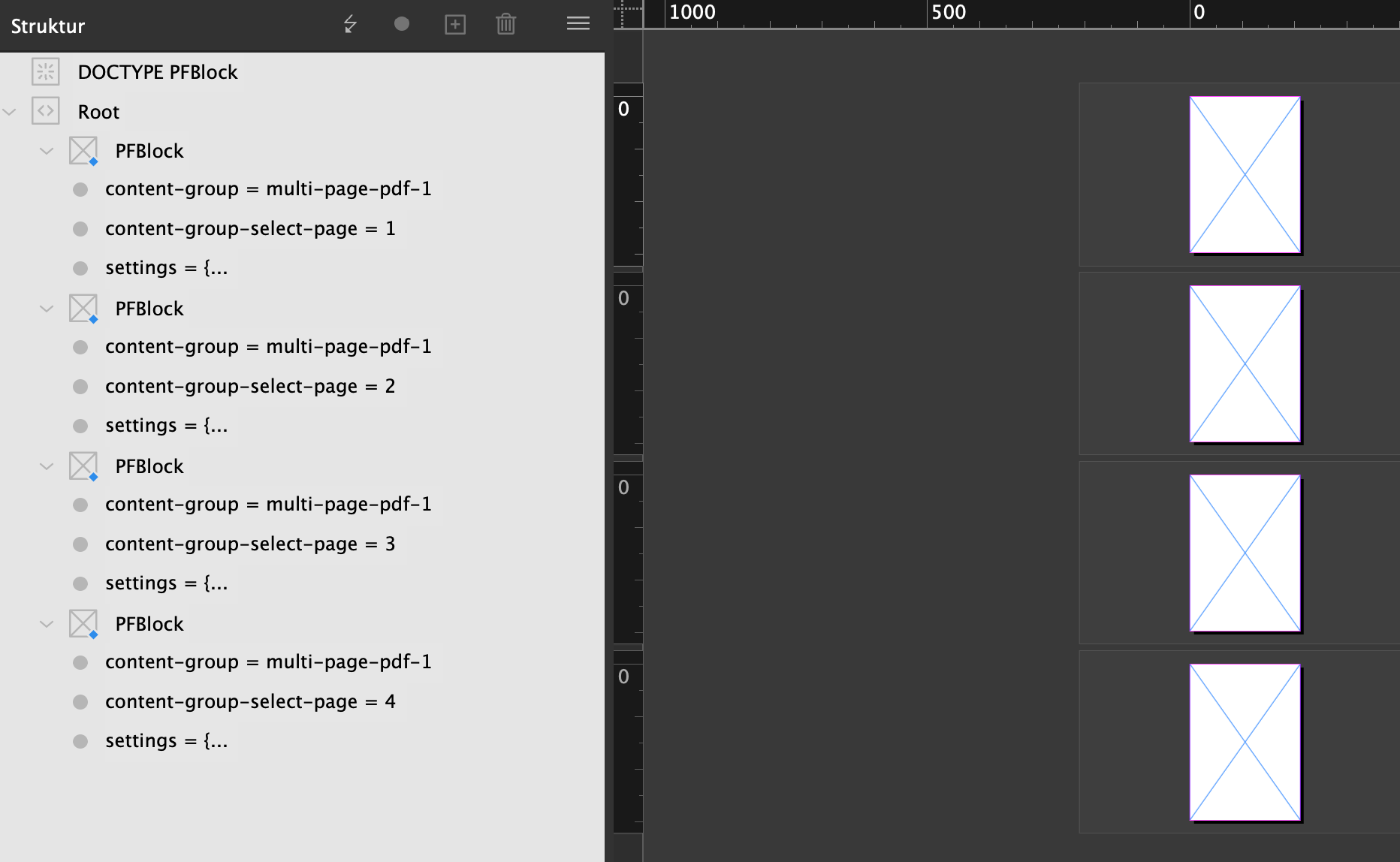
Example for a two-page layout:
-
PFBlock 1 (for PDF page 1):
-
content-group=multi-page -
content-group-select-page=1
-
-
PFBlock 2 (for PDF page 2):
-
content-group=multi-page -
content-group-select-page=2
-
Attributes
|
||
|
The values listed under Name are standalone attributes on the PFBlock tag and are each entered as a Name; the possible Value options are listed in the second column. If the cell is empty, the value is freely selectable. |
||
|---|---|---|
|
Name |
Values (constraints) |
Usage |
|
content-group |
Freely selectable
|
Groups related placeholders. All blocks with the same name form a logical unit. |
|
content-group-select-page |
|
Determines which PDF page is inserted into this specific block |
|
settings |
general block defaults |
|
|
Note: Assigning unique group names is especially important when multiple independent PDF uploads (e.g., a data sheet and a certificate) are to be processed simultaneously within a single template. |
||
Template Configuration Settings
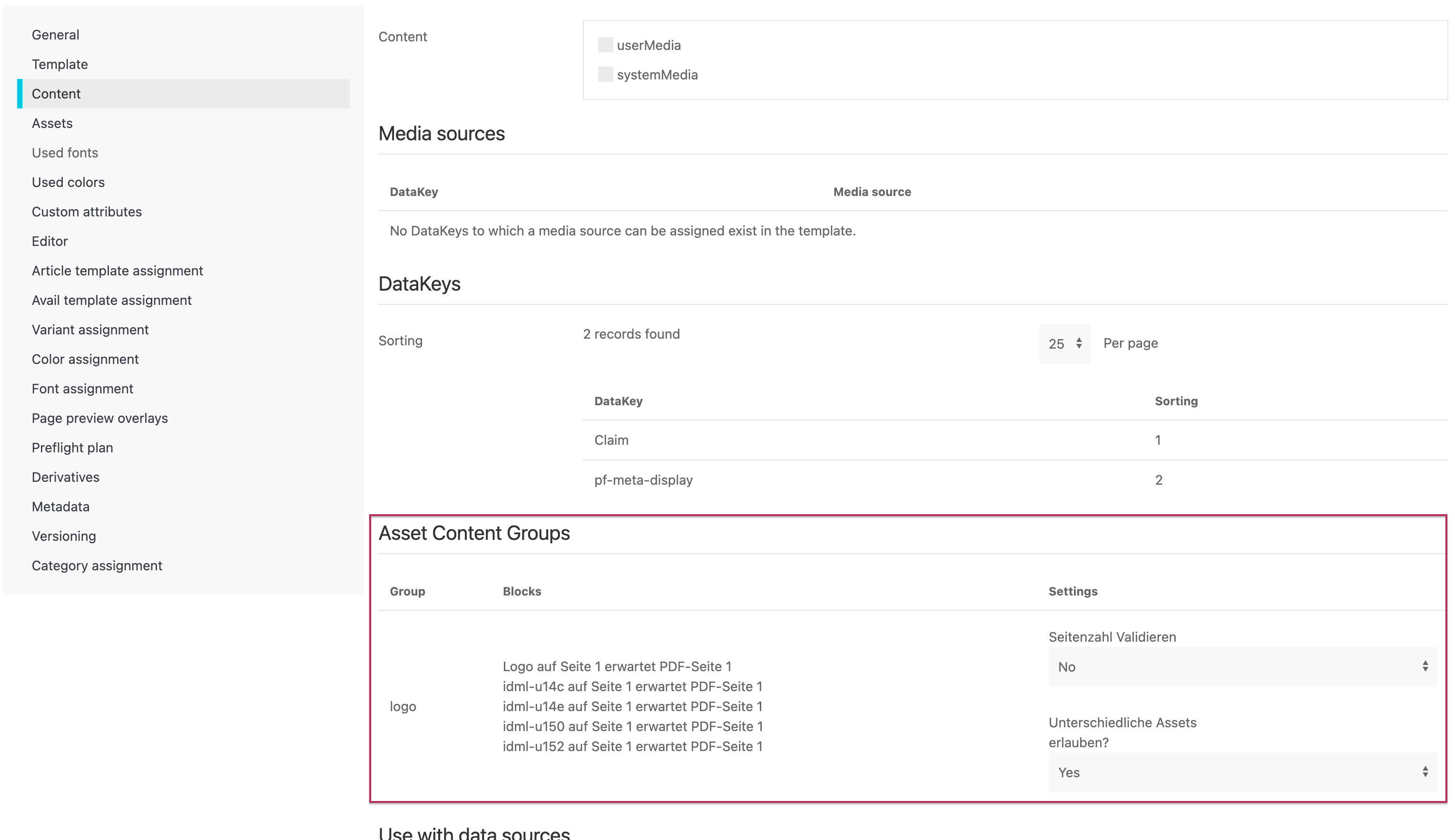
When the content-group attribute is included in the IDML file, the section "Content" provides the following settings:
Asset Content Groups
-
Validate Page Count:
No|Warning|Error -
Allow Different Assets?:
Yes|No(Selecting "Yes" allows manually replacing the asset in individual blocks within a content group.)
Behavior in the Editor
As soon as the user uploads a PDF:
-
Assignment: The system checks the
content-group. -
Distribution: The pages of the PDF are distributed to the blocks based on the numbering in
content-group-select-page. -
Flexibility: Multiple blocks can also reference the same page (e.g., page 1 as the main image and additionally as a small preview image on another page).
For error-free processing, the PDF versions (PDF/X) of the (template) background PDF and the upload PDF must strictly match. To avoid issues in the editor, PDF/X standards should be avoided.